Practical content migration guide for CMS comparison
Content Migration: How to Compare Old and New CMS Content Without Losing Your Mind
Estimated reading time: 12 minutes
- Compare old and new CMS environments to prevent data loss and broken relationships.
- Run test migrations with representative samples to validate formatting, metadata, and performance.
- Use incremental migration and automation where appropriate, keeping manual checks for custom types.
- Verify data integrity with counts, field-level validation, and file checksums.
- Preserve SEO and technical elements with redirects, metadata, structured data, and sitemap updates.
Why Content Migration Comparison Matters More Than You Think
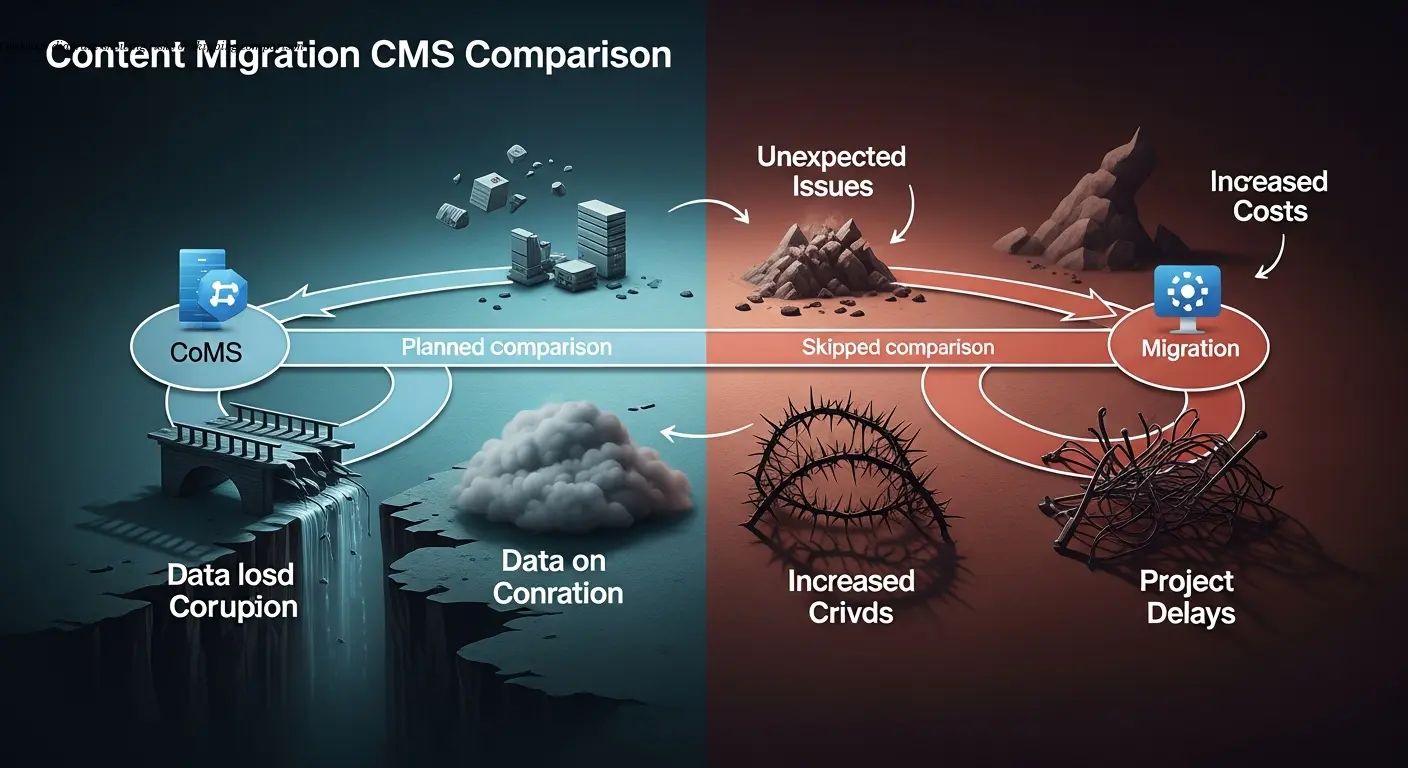
Comparison is the foundation of any successful CMS transition. Rushing into migration without a detailed comparison between the legacy and target systems frequently leads to lost formatting, broken media references, orphaned content, and weeks of cleanup work.
Content migration isn't just copying files—it's mapping fields, taxonomies, and relationships from one architecture to another. A seemingly small assumption (for example, that rich text fields behave the same) can cost weeks of remediation if you don't compare and test first.
Understanding the Technical Differences Between Legacy and Modern CMS Platforms

Architecture: Legacy platforms are often monolithic; modern and headless solutions separate content from presentation. That fundamental shift affects how you export, transform, and import content.
Databases and APIs: Expect different schemas—SQL tables versus document stores—and different API capabilities (REST/GraphQL vs limited or no APIs). If the old system lacks export functionality you may need direct DB access and custom queries.
Also compare versioning models, media storage (file system vs CDNs/DAMs), and permission systems. Each of these differences must be understood and planned for during the comparison phase.
Building Your Content Inventory for Accurate CMS Comparison
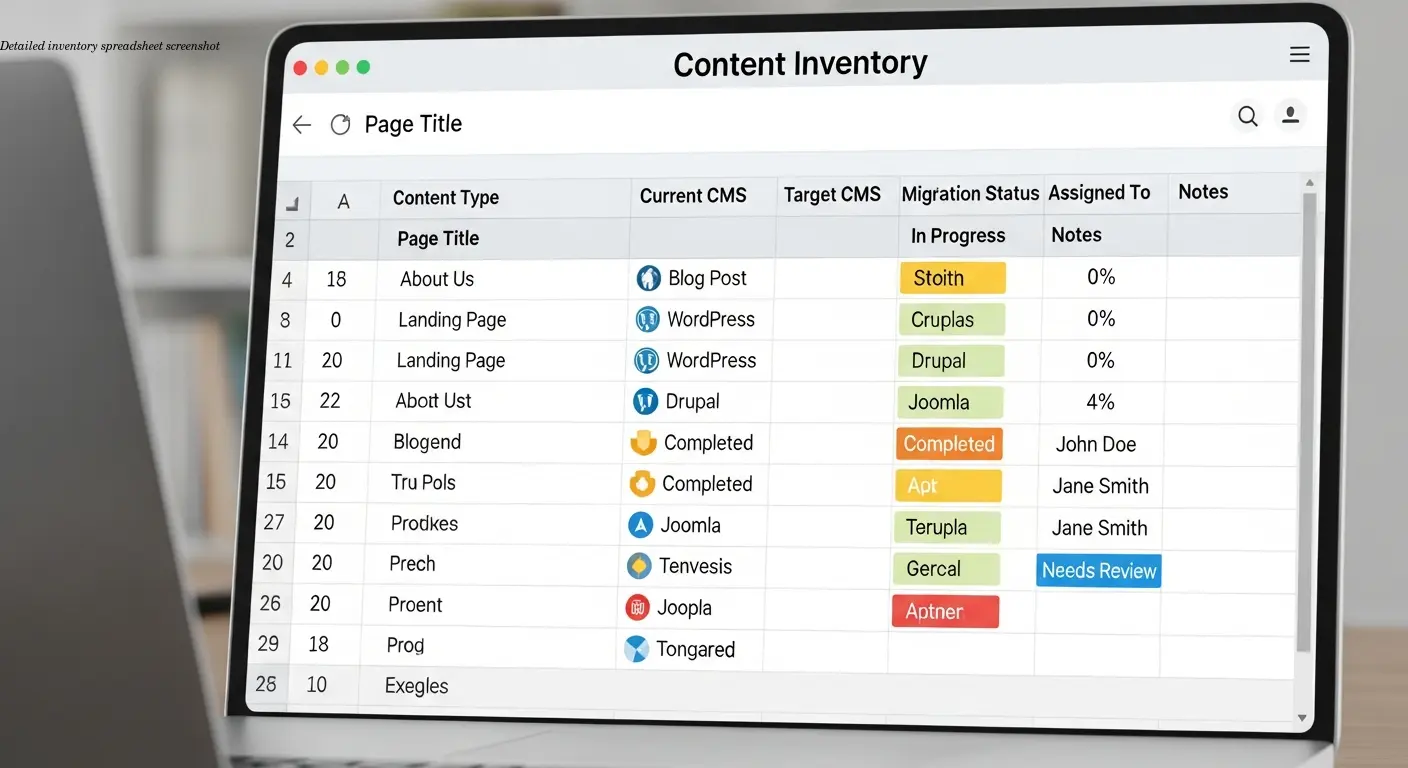
Create a comprehensive inventory of pages, posts, media, custom types, taxonomies, user roles, and relationships. Many organizations discover far more custom content types than expected when they perform a proper audit.
Metadata and fields: List every field (author, SEO title, meta description, custom fields) and compare them to the target CMS's native fields. Identify which fields need custom implementations in the new system.
Media and URLs: Inventory file sizes, formats, storage locations, and how files are referenced. Generate a full sitemap of current URLs to plan redirects and preserve SEO value.
Setting Up Test Environments for Migration Validation
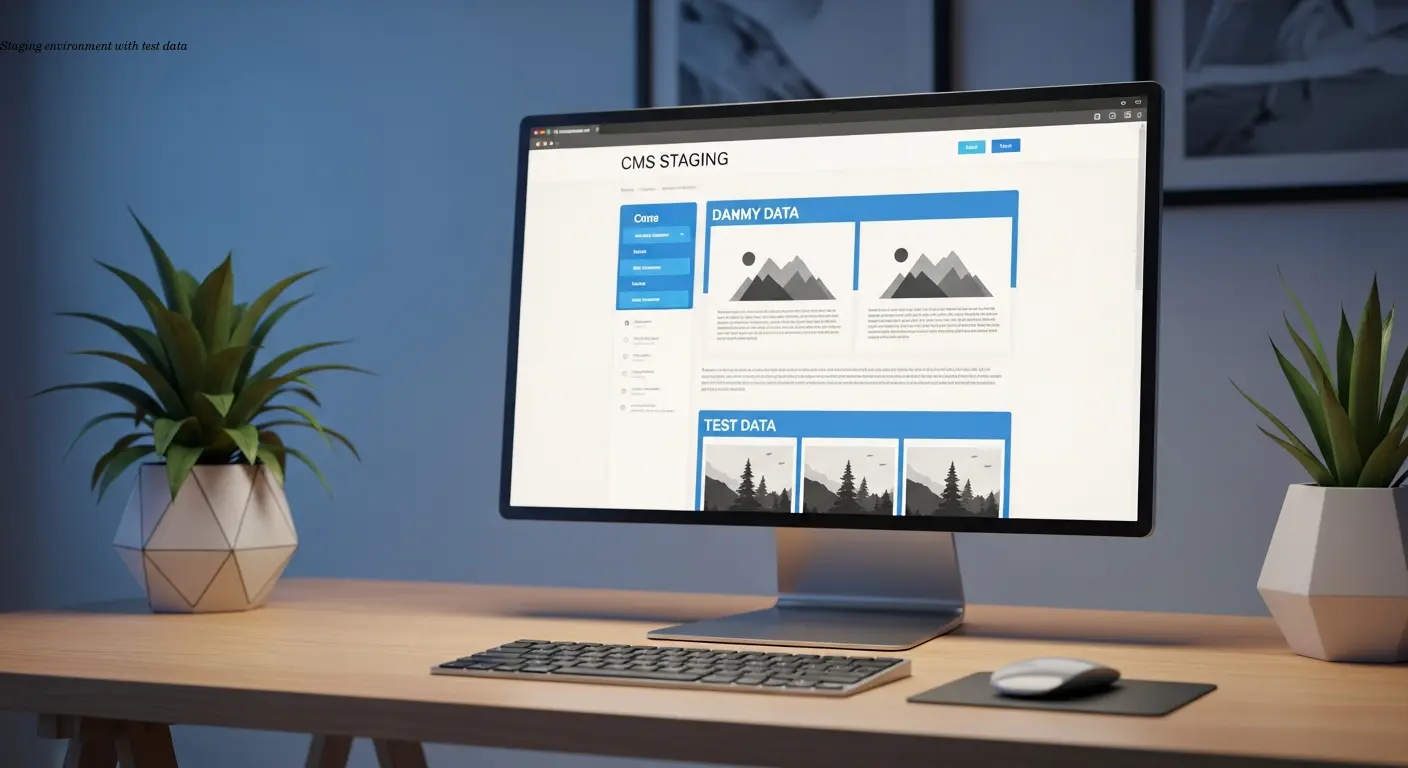
Staging equals safety: Use a staging environment that mirrors production and include representative content for every content type and edge case. I recommend 10–15% sample coverage to validate transformations.
Create a systematic checklist for test runs: content completeness, formatting, metadata, media loading, internal links, performance, and error logs. Track issues in a remediation spreadsheet with severity levels so nothing is missed.
Automated Tools vs. Manual Processes for Content Migration

Automated migration tools (e.g., CMS2CMS, WP All Import, platform-specific importers) are excellent for bulk transfers of standard content, often handling 80–90% of the work when systems are supported. However, automation requires oversight—scripts can create duplicates or mis-map relationships if not monitored.
Custom types and edge cases usually need manual attention or API-driven scripts. I recommend a hybrid approach: use automation for bulk data, custom API scripts for complex transformations, and manual verification for the rest.
Ensuring Data Integrity Throughout Your CMS Transition

Counts and field validation: Compare item counts per content type before and after migration. Use validation scripts to compare field-level data and sample at least 5% of migrated items, focusing on complex metadata.
Duplicates and rollbacks: Prevent duplicate content by controlling migration runs and keeping the old site in read-only mode until you're confident. Maintain database backups and rollback plans.
File integrity: Verify media via file sizes and checksums; automated scripts scale for thousands of assets where manual checks are impractical.
Preserving SEO Value and Technical Elements During Migration
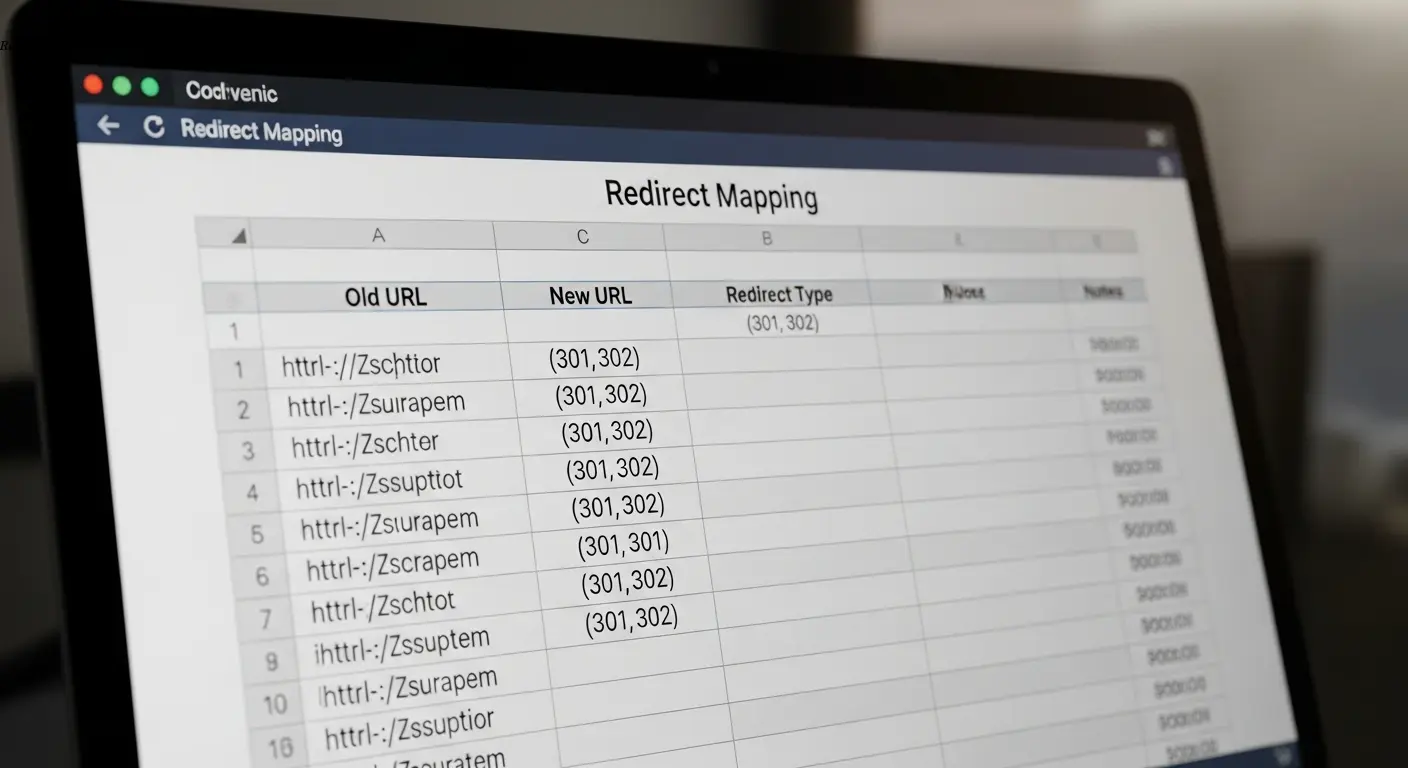
Redirect strategy: Map every old URL to a new URL with 301 redirects or return 410 intentionally for retired content. Maintain a redirect spreadsheet with implementation status.
Metadata and structured data: Preserve titles, meta descriptions, heading structures, alt text, and schema.org markup. Compare generated structured data with tools like Google Search Console and re-submit sitemaps after migration.
Post-Migration Monitoring and Optimization Strategies
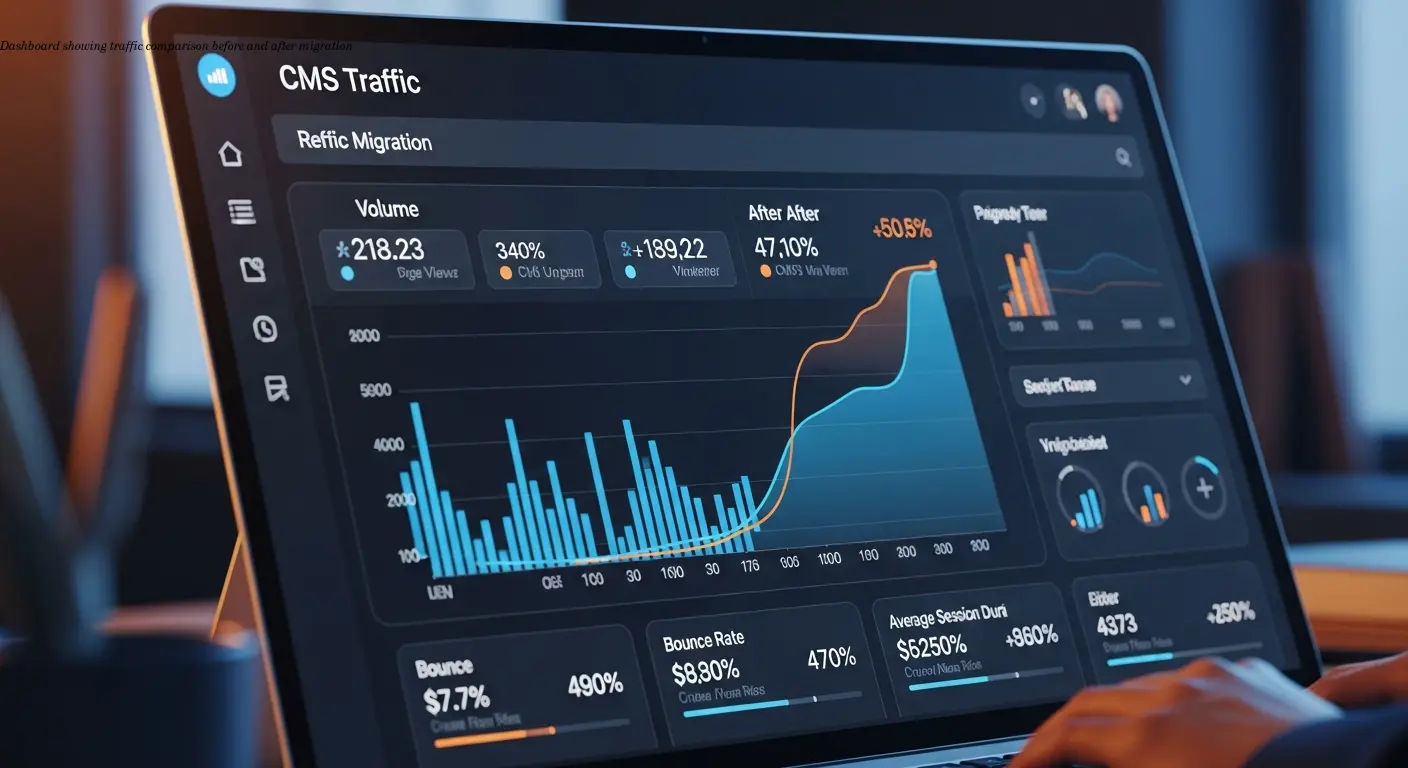
Plan for intensive monitoring for at least the first two weeks after migration: daily checks of traffic, search console metrics, error logs, and user feedback. Compare post-migration traffic to pre-migration baselines to detect issues quickly.
UX and performance: Have real users test editing workflows and page behavior. Review performance metrics and address any page types that load slowly. Use this phase to refine content models and take advantage of new CMS capabilities like personalization and A/B testing.
Frequently Asked Questions
How long does a typical content migration take?
Timelines vary by content volume and complexity; most migrations take 2–4 months from planning through validation. Small sites may finish in 4–6 weeks; large enterprise projects can take 6–12 months.
Should I migrate all my content or use this as an opportunity to clean up?
Use migration as a cleanup opportunity. Archive or delete outdated content to reduce migration burden, but document decisions carefully to avoid removing valuable pages unintentionally.
What happens if the migration fails or something goes wrong?
Implement backups, version control, and rollback mechanisms. Keep the old CMS accessible in read-only mode for at least a month and maintain database backups to restore a known good state if needed.
Can I run both the old and new CMS simultaneously during migration?
Yes. Incremental migration approaches and composable platforms often support federated content, enabling teams to work across both systems while migrating gradually.
How do I choose between different migration tools and approaches?
Evaluate content complexity, volume, budget, and technical expertise. Use pre-built tools for standard content, custom API scripts for complex cases, and manual processes for edge cases.
What's the biggest mistake teams make during content migration?
Skipping test migrations is the most common costly mistake. Test migrations validate processes and reveal issues before production runs. Underestimating a systematic comparison of old vs new content is another frequent error.
How do I maintain SEO rankings during a CMS transition?
Implement comprehensive 301 redirects, preserve metadata and structured data, keep URLs similar where possible, regenerate and submit sitemaps, and monitor search console metrics closely after migration.
What should I do if I discover missing content after migration?
Check migration logs and configuration first. If items truly failed to migrate, run supplemental migrations targeted at missing items. Keeping the old CMS accessible makes recovery much easier.
Related Articles

Building an Autonomous AI News Agent with n8n & Bright Data (Part 1)
Learn how to build an autonomous AI-powered news scraper using n8n and Bright Data. Part 1 covers the Ingestion Engine architecture for 24/7 market monitoring.

Collaborative Writing Guide to Comparing Team Contributions
Compare team contributions with collaborative writing tools, clear roles, and peer assessment—practical tactics content teams can apply now.

A-B testing content tactics for growth marketers
A-B testing content strategies to boost conversions: test headlines, CTAs, one variable at a time, and run tests to significance. From proven growth teams.